 Insurance
 Health Care
 Construction
 Financial Services
 Mobile
 Real Estate
 Project Management
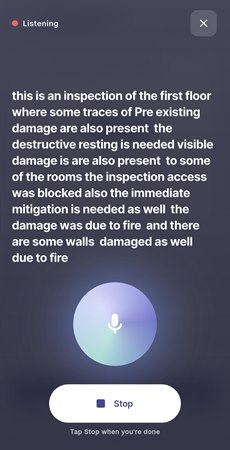
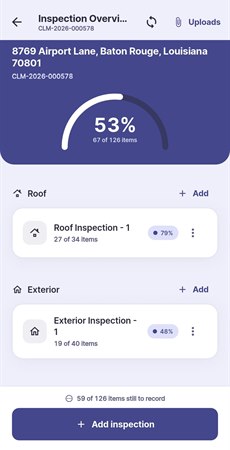
ScopeX is a Flutter mobile app (Android and iOS) for insurance field adjusters. It works alongside the RhealCMS web portal. Adjusters see the claims assigned to them, visit the property, and record a full damage scope on site. The scope covers Roof, Exterior, Interior and Detached Structures, plus photos and documents. That data goes straight into the same system the office team uses on the web.
 The problem it solves
Inspections usually get written on paper or from memory and typed into the portal later. That’s slow, details get lost, and sometimes two people edit the same inspection without knowing it. ScopeX moves that work to the property itself. It keeps working with a weak signal or none at all.
 Key capabilities
- Forms come from the server. Every inspection form is built from the backend’s questionnaire, so the business can change questions without shipping a new app. The data the app sends matches what the web portal sends.
- Works offline first. Everything is saved on the device first. It syncs in the background when the app opens, when the connection comes back, and on a regular timer.
- Web and mobile stay in step. Each inspection has a version and a lock, so edits from the web and the phone can’t silently overwrite each other. Inspections can be handed between web and mobile, sent back for rework, and submitted per inspection or for the whole claim.
- Photos and documents. Uploads are kept per claim, and failed uploads are retried.
- Push notifications for claim assignments, hand-overs and send-backs. Tapping one opens the claim directly.
- Dashboard showing today’s, open and total claims, a status breakdown, and a live sync indicator.
Speech-to-form filling
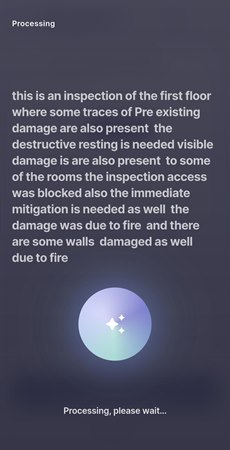
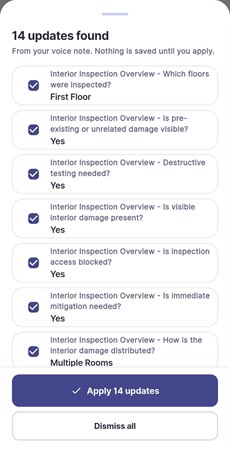
The adjuster taps the mic and describes the damage in plain speech, for example: “Kitchen ceiling has water staining, about 12 square feet, drywall is soft.” The app turns the speech into text, and AI matches what was said to the right fields in the form. The adjuster checks the suggested values on a review screen before anything is filled in, so nothing is entered without their approval. Notes recorded offline wait in a queue and are processed once the device is back online. We’re also testing doing this extraction entirely on the phone, which would make it work fully offline.
 Inspection types
Every inspection type is built from the server’s questionnaire and lays its screens out the way the web portal does. Below is a quick overview of Inspection Types handled in the mobile application.
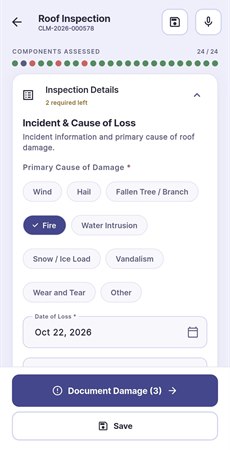
- Roof Inspection: Covers the roof’s condition, materials and damage, component by component.
- First page: collapsible panels for Inspection Details, Roof Profile, Damage Assessment, and Weather & Water.
- Component status grid: all 24 roof components appear as cards marked DMG / OK / N/A. A counter shows how many are assessed, and bulk buttons (“All Damaged”, “All OK”, “All N/A”, Reset) mark everything in one tap.
- Cause-aware questions: Wind and Hail sections show up according to the cause of loss. The damage sections only hide if the adjuster explicitly answers that no damage is visible.
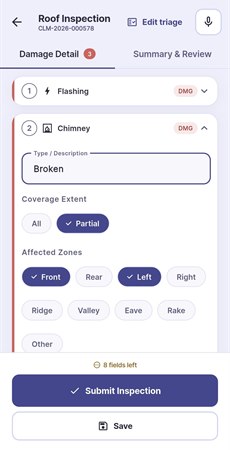
- Damage detail: one numbered card per damaged component, showing only the questions that apply to that component’s type. That includes quantities, a 0–100% coverage slider, and chips for affected zones. Each picked zone gets its own linear-foot quantity.
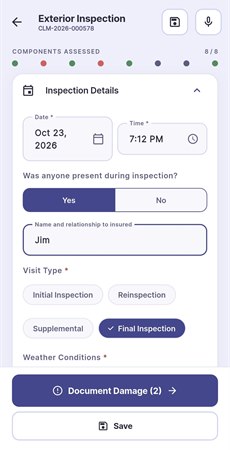
- Exterior Inspection: Covers the outside of the house: siding, coverings, and attached exterior components.
- Triage page: inspection details (visit type, weather, who was present) and a property overview (property type, stories, age, main covering). Then every exterior component is marked damaged, OK or N/A.
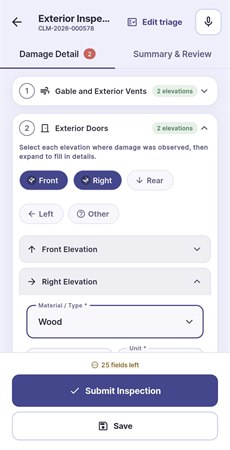
- Measured by elevation: for each damaged component, the adjuster picks the sides where damage was seen (Front, Right, Rear, Left). Each side gets its own card with material, quantity, unit, damage type, severity, width, height and notes.
- Simple items stay simple: a component without elevations, like a mailbox, gets a single damage description box.
- Summary & Review: overall severity, a damage summary, specialist evaluations needed, scope status, and the adjuster’s certification.
- Interior Inspection: Covers each room in the home, organised room by room.
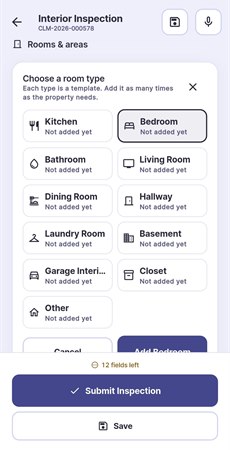
- Room cards: an overview, then a card for each room (Kitchen, Bedroom, Bathroom and so on, each with its own icon). Every card shows how many required fields are filled in, with a progress bar and a status: Open, Needs review or Complete.
- Quick room setup: the adjuster picks a room type and the room is named automatically (“Bedroom 2”).
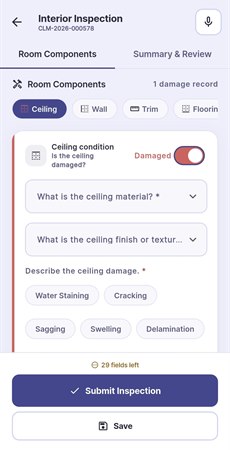
- Inside a room: a tab for each component (Ceiling, Wall, Trim, Flooring, Door, Window, Cabinets, Fixtures). Each tab has a Damaged / No damage switch that opens the details only when needed. Previous and Next arrows move between rooms.
- Stricter than the web: the adjuster’s certification is required before submitting, which the portal doesn’t enforce.
- This is the type where we’re testing on-phone voice extraction.
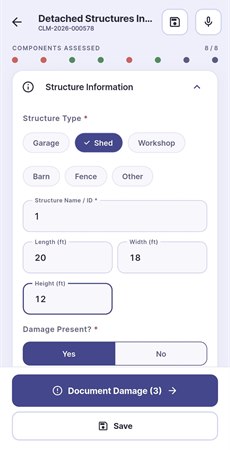
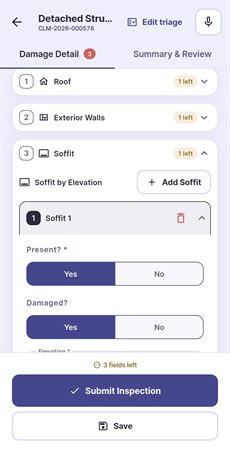
- Detached Structures: Covers separate buildings on the property, such as garages, sheds and fences.
- Structure information: type, name/ID, size (L × W × H), and whether damage is present. Picking the structure type decides which components appear: building parts for a shed or garage, fence and posts for a fence.
- A mini-inspection per structure: each damaged component has its own form, and the adjuster adds items under it with “Add Slope”, “Add Wall”, “Add Door”, Fascia, Soffit, Gutters, Downspouts or Rooms. A room gets its own tabs for ceiling, walls, flooring and so on.
- Built-in gate: “Document Damage” only unlocks once a structure type is picked and at least one component is marked damaged, so structures with no damage don’t create empty reports.
Screenshots
Tech stack
Flutter, Riverpod, SQLite (on-device storage), Dio (networking), Firebase Cloud Messaging and Crashlytics, and on-device speech recognition with AI extraction.